

Before you start
- You need to be an Endgame admin and a Looker admin.
- You’ll need three things from Looker: a client ID, a client secret, and your tenant URL. See Get your Looker API credentials.
Get your Looker API credentials
- In Looker, click Admin in the left-hand menu.
- Click Users, then click your own name.
- Scroll down to API Keys and click Edit Keys.
- Click New API Key.
- Copy the Client ID and Client Secret and keep them somewhere safe. Looker only shows the client secret once.
https://your-company.looker.com. It must start with https:// and end in looker.com.
Connect Looker
- In Settings > Organization > Integrations, find Looker and click Connect. You can search for “Looker”, or choose Available to show only integrations you haven’t connected yet.
- Enter your Client ID, Client secret, and Tenant URL, then click Connect.
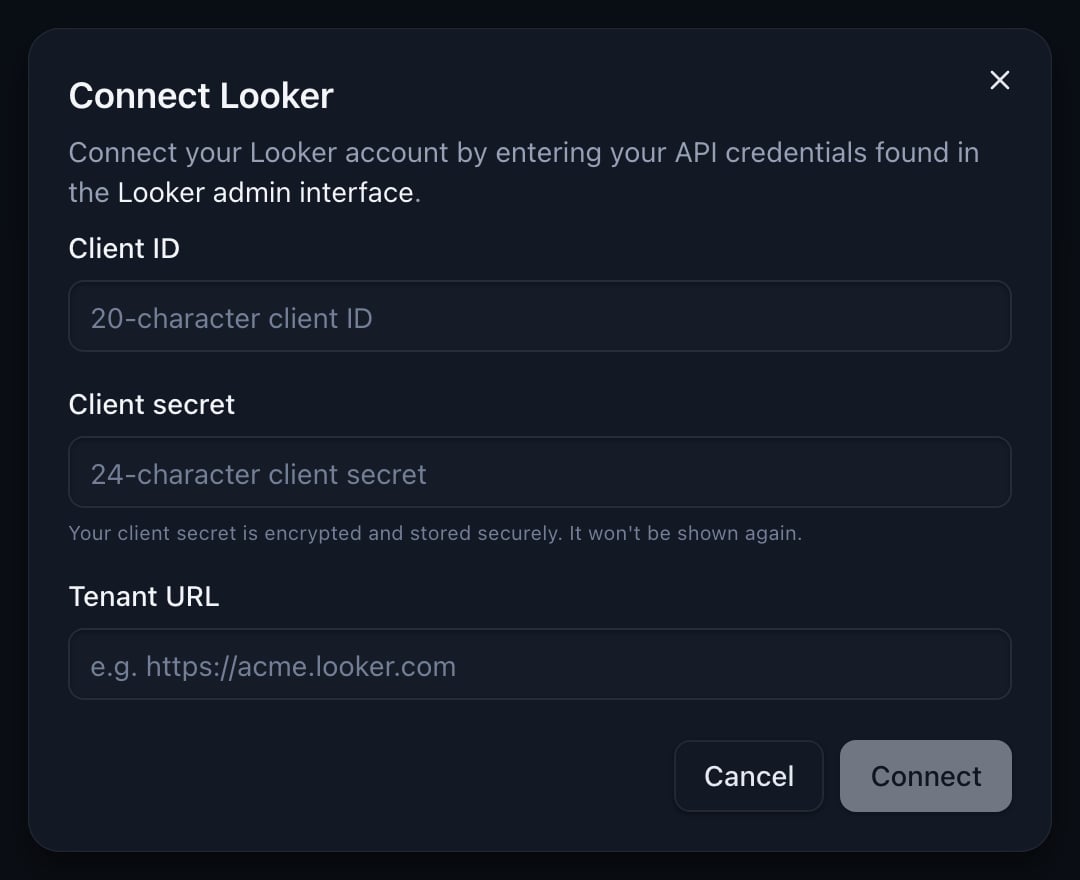
Connecting Looker needs your client ID, client secret, and tenant URL.
Wait for Endgame to help set up your data
After you connect, the Looker page shows a banner saying an Endgame representative will help set up your Looker data. Endgame is notified when you connect Looker, and we’ll reach out soon to choose the best way to bring your data in.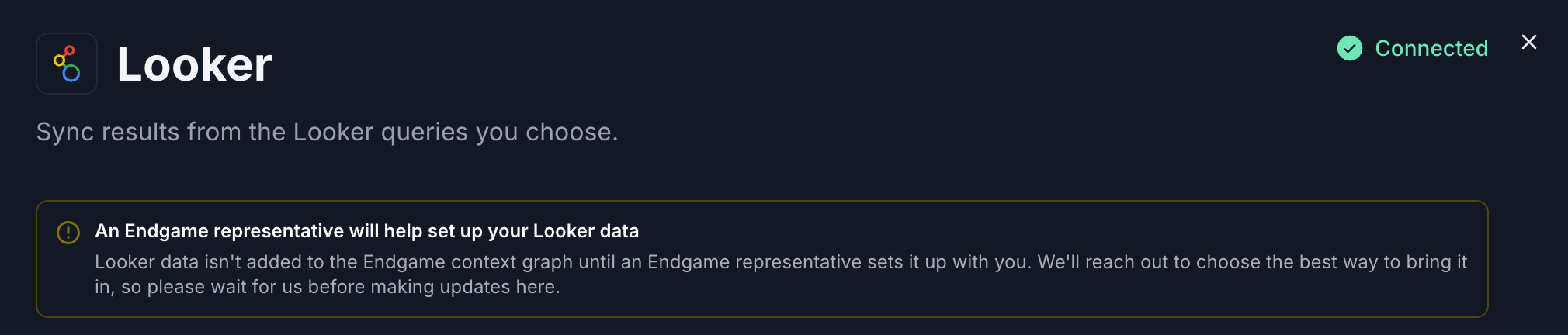
This banner means you can pause here until an Endgame representative contacts you.
Please wait to hear from us before you add queries. Adding them now won’t
break anything, but Looker data isn’t added to the Endgame context graph until
we finish setting it up with you.
Add a query
- In Looker, open the Explore for the data you want Endgame to use.
- Click the gear icon at the top right, then click Share.
- From the Short URL, copy everything after the last
/. That’s the query ID. - In Endgame, on the Looker page, click Add query next to Saved queries.
- Paste the Query ID. Endgame shows a preview of the first 10 rows so you can check it’s the right one.
- Add a Description, which is required, and optionally a Title. Then click Add.
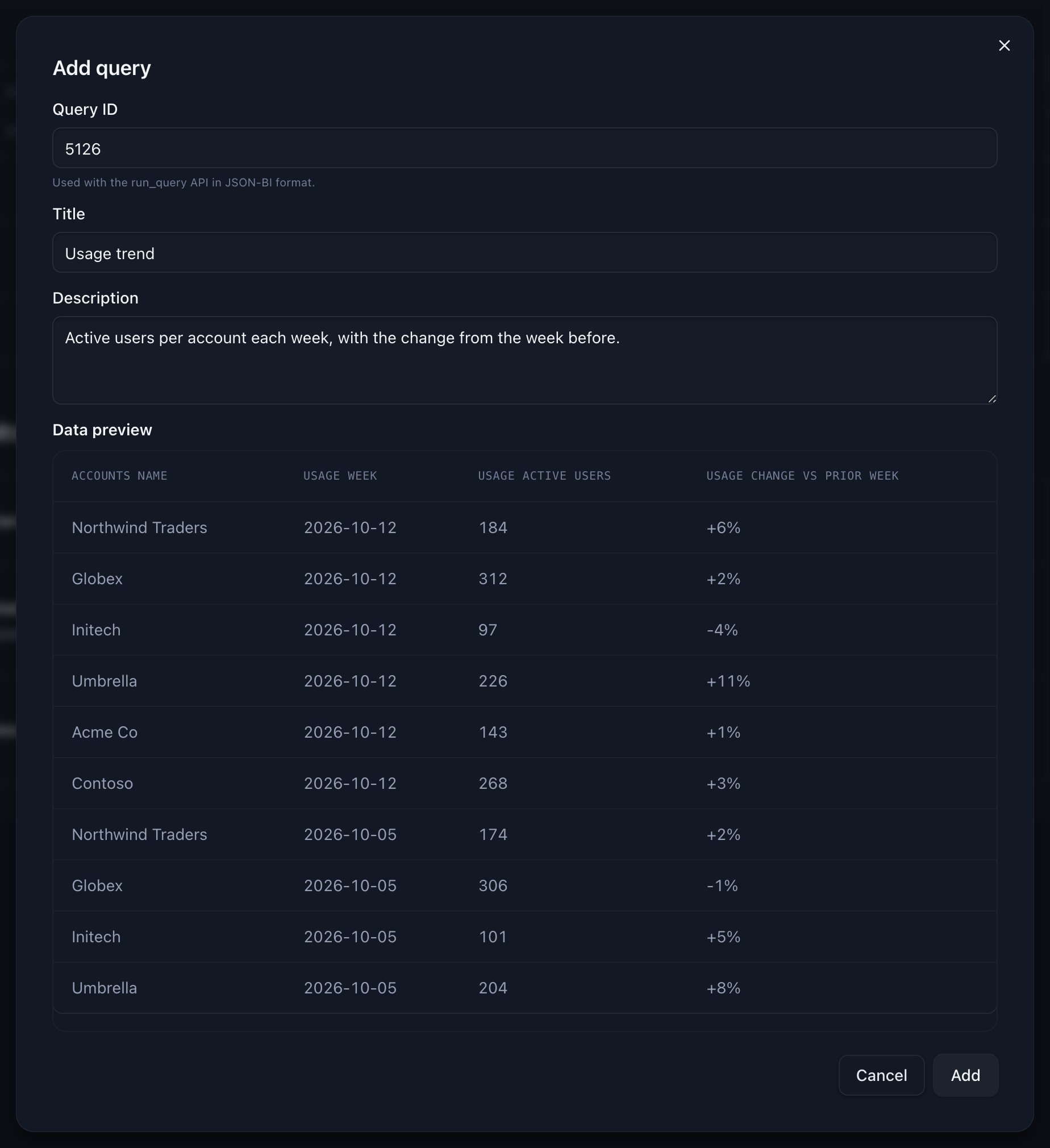
The Add query dialog previews a query's data before you add it.
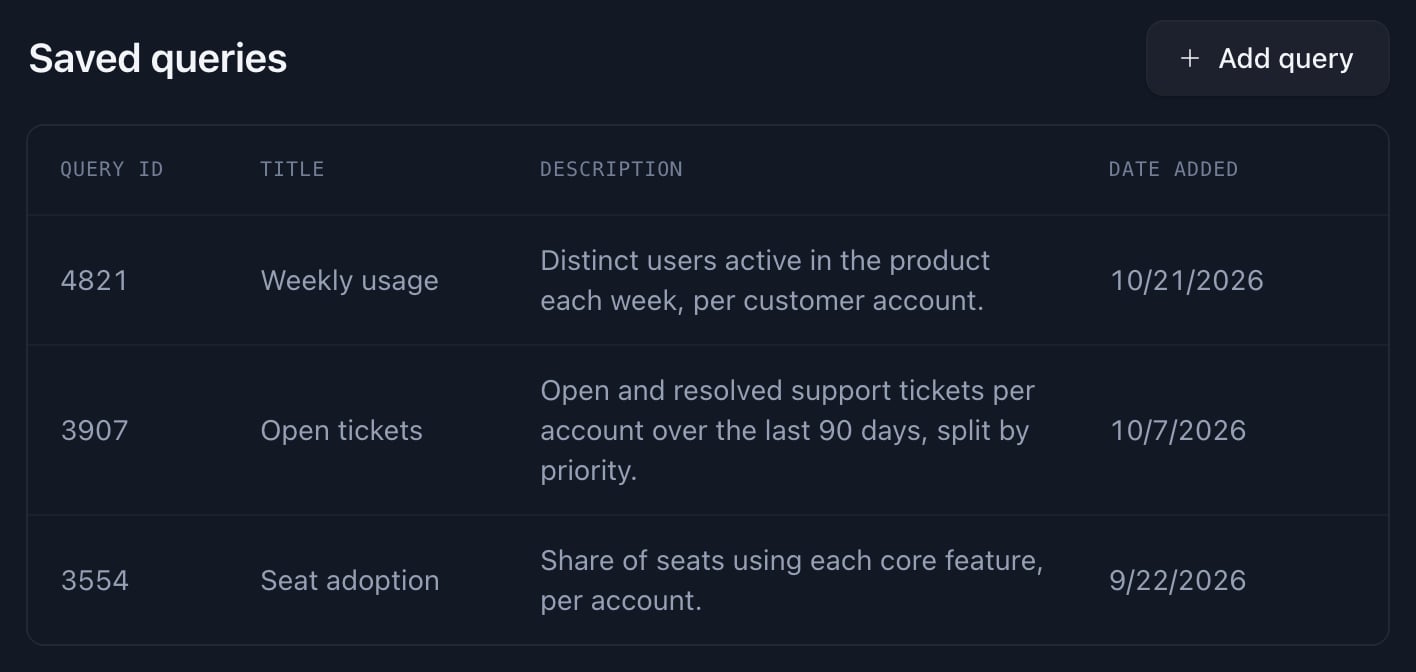
Saved queries lists the Looker queries Endgame uses.
Looker queries usually describe your whole organization, so Endgame treats
them as organization-wide data rather than tying them to one account.
Delete a query
In Saved queries, hover over the query, click the trash icon, and then click Delete. Endgame stops using that query’s data.Update credentials or disconnect
Use the Connection section at the bottom of the Looker page. See Manage a connected integration.- Update credentials opens the same dialog as connecting, with nothing prefilled.
- Disconnect stops syncing your saved queries, and Endgame imports no new Looker data.