> ## Documentation Index
> Fetch the complete documentation index at: https://docs.endgame.io/llms.txt
> Use this file to discover all available pages before exploring further.
# Navigating Endgame
> Learn how to navigate and use Endgame's features for deep customer understanding
## About Endgame
Note: Endgame is moving to a new web app and MCP experience built on our
context graph. These docs describe the new experience. Docs for the previous
version live in [Legacy Endgame](/legacy-endgame).
Endgame enables everyone at your company to deeply understand your customers and prospects. Think of it as a single playbook for the entire team, covering sales and account management use cases such as company research, meeting prep, account planning, deal review, handoffs, and more.
After you [log in](https://login.endgame.io/), you'll land on the Endgame [homepage](https://app.endgame.io/), where you can ask Endgame about any entity in your organization's context graph.
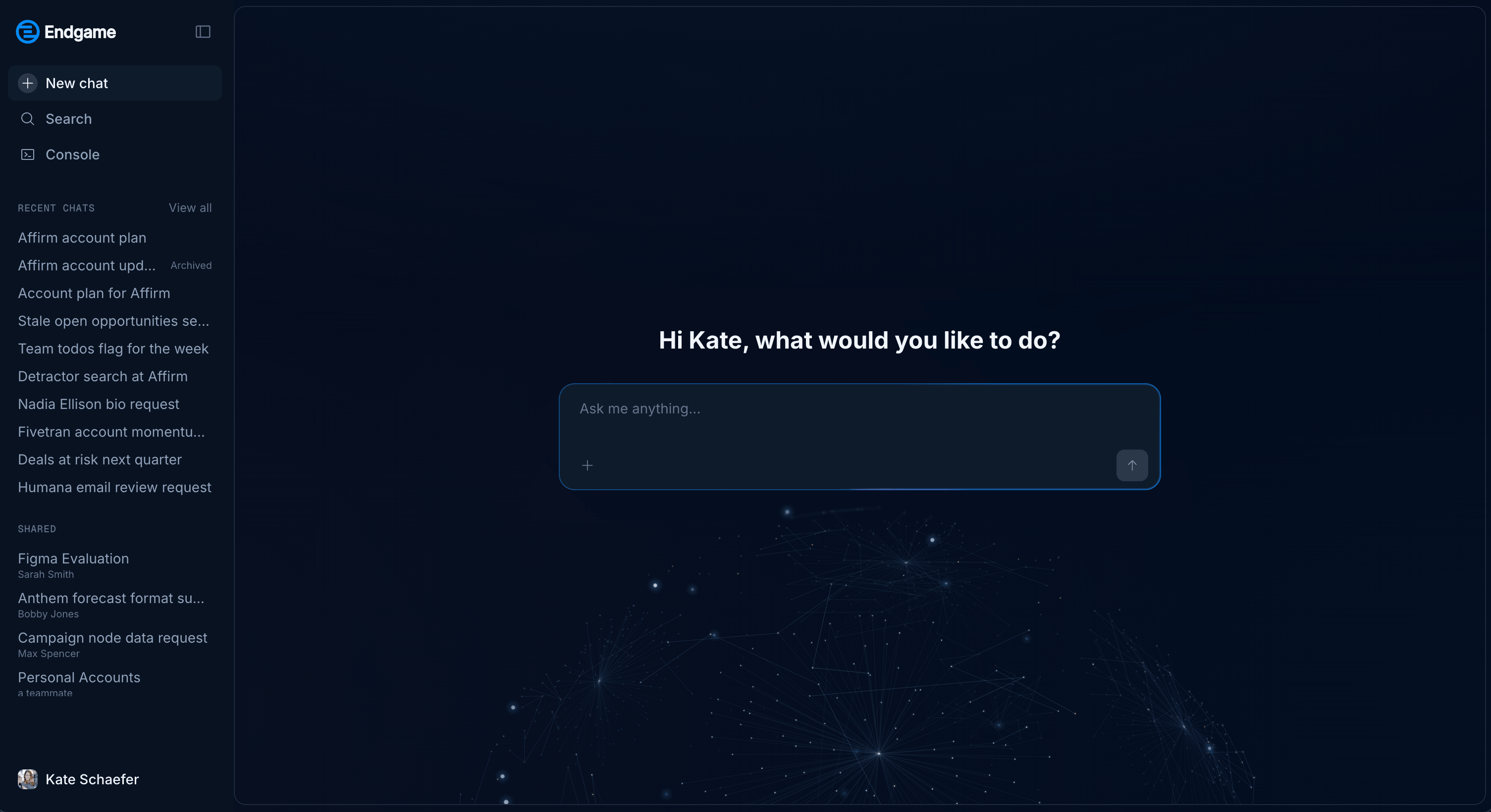 **Important:** The only companies you will see are those with Account records
in your CRM that Endgame has been given access to.
## Search
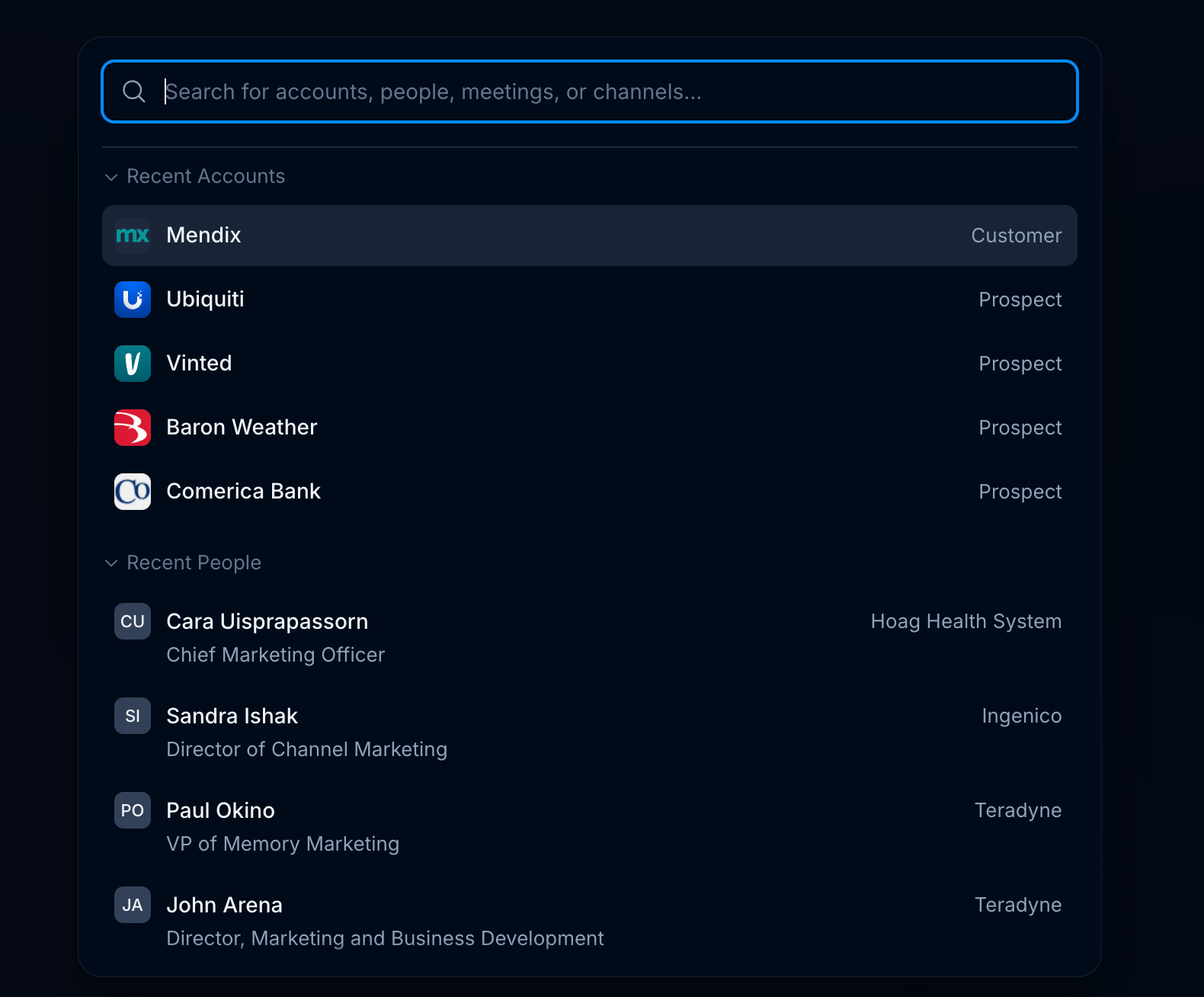
Search is available in the side nav, or by pressing `⌘K` from anywhere in the app. Use it to dig into the entities in your context graph, such as accounts, people, meetings, and channels.
Results are grouped by category as you type, and each result carries a short label to help you tell similar entries apart. Before you type anything, Endgame lists what you visited most recently. Click any result to open its entity page and see everything Endgame has assembled on it.
**Important:** The only companies you will see are those with Account records
in your CRM that Endgame has been given access to.
## Search
Search is available in the side nav, or by pressing `⌘K` from anywhere in the app. Use it to dig into the entities in your context graph, such as accounts, people, meetings, and channels.
Results are grouped by category as you type, and each result carries a short label to help you tell similar entries apart. Before you type anything, Endgame lists what you visited most recently. Click any result to open its entity page and see everything Endgame has assembled on it.
 ## Entity pages
Each entity page brings together everything the context graph knows about that entity. Alongside cited factual data, you'll find compiled insights and rollups produced by Endgame's context agents, which run around the clock to keep every entity current. Sections powered by a context agent are labeled with the name of the agent providing the data.
## Entity pages
Each entity page brings together everything the context graph knows about that entity. Alongside cited factual data, you'll find compiled insights and rollups produced by Endgame's context agents, which run around the clock to keep every entity current. Sections powered by a context agent are labeled with the name of the agent providing the data.
 The following context agents are included out of the box.
| Agent | Description |
| - | - |
| Overview agent | Summarizes the current state of an account or person, bringing together recent activity, key relationships, and important developments so you can get up to speed quickly. |
| News agent | Finds and curates relevant public news about companies, helping you spot developments that could affect your relationships or create a reason to reach out. |
| Workstream agent | Organizes an account's ongoing initiatives into workstreams, highlighting progress, owners, next steps, and blockers across meetings, emails, and deal activity. |
| Deal agent | Brings together an account's opportunities, including deal stages, amounts, and close dates, so you can see the current pipeline in one place. |
| Committee agent | Identifies the people involved in an account's buying decisions, including decision-makers, champions, and connectors, and summarizes their roles and engagement based on the available evidence. |
| Interaction agent | Brings meetings, email conversations, and chat activity into a shared interaction history, helping you review past engagement and upcoming meetings. |
| Knowledge agent | Collects the documents and chat channels linked to an account, giving you a place to find the supporting material behind your team's work. |
## Chat
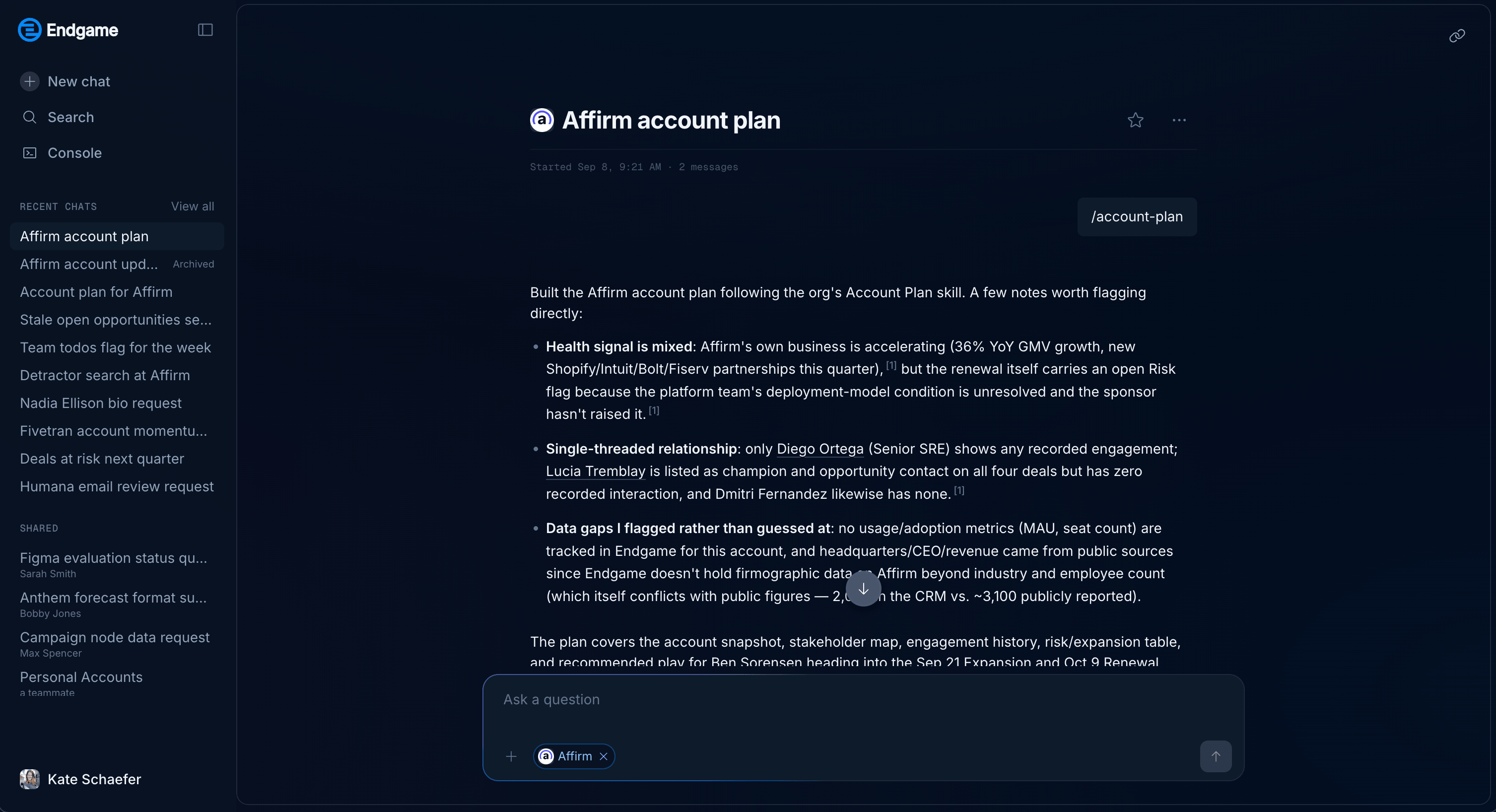
Use chat to ask questions about a specific account or across your entire book, just like you would with any AI assistant. Dig into meetings, people, deal details, and more. To open chat, click the text bubble icon in the top navigation.
The following context agents are included out of the box.
| Agent | Description |
| - | - |
| Overview agent | Summarizes the current state of an account or person, bringing together recent activity, key relationships, and important developments so you can get up to speed quickly. |
| News agent | Finds and curates relevant public news about companies, helping you spot developments that could affect your relationships or create a reason to reach out. |
| Workstream agent | Organizes an account's ongoing initiatives into workstreams, highlighting progress, owners, next steps, and blockers across meetings, emails, and deal activity. |
| Deal agent | Brings together an account's opportunities, including deal stages, amounts, and close dates, so you can see the current pipeline in one place. |
| Committee agent | Identifies the people involved in an account's buying decisions, including decision-makers, champions, and connectors, and summarizes their roles and engagement based on the available evidence. |
| Interaction agent | Brings meetings, email conversations, and chat activity into a shared interaction history, helping you review past engagement and upcoming meetings. |
| Knowledge agent | Collects the documents and chat channels linked to an account, giving you a place to find the supporting material behind your team's work. |
## Chat
Use chat to ask questions about a specific account or across your entire book, just like you would with any AI assistant. Dig into meetings, people, deal details, and more. To open chat, click the text bubble icon in the top navigation.
 #### Chat history
Your past threads are listed under **Recent chats** in the column on the left, most recent first. Endgame titles threads automatically based on what you asked, so you can scan the list to pick up earlier work. Click any thread to reopen it and keep going, or select **View all** to browse your full history. **New chat** at the top of the column starts a fresh thread, and the panel icon next to the Endgame logo collapses the column to give the conversation more room.
#### Chat history
Your past threads are listed under **Recent chats** in the column on the left, most recent first. Endgame titles threads automatically based on what you asked, so you can scan the list to pick up earlier work. Click any thread to reopen it and keep going, or select **View all** to browse your full history. **New chat** at the top of the column starts a fresh thread, and the panel icon next to the Endgame logo collapses the column to give the conversation more room.
 #### Chat controls
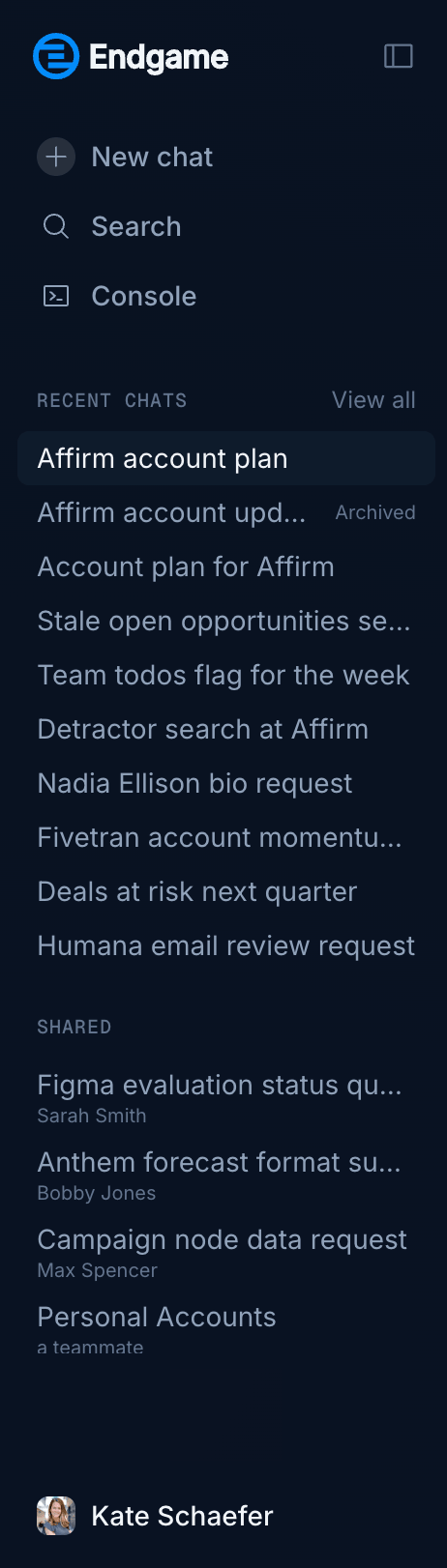
The controls above a thread let you save it, share it, or remove it.
#### Chat controls
The controls above a thread let you save it, share it, or remove it.
 * **Favorite:** Click the star icon next to the thread title to favorite a chat. Favorited chats are pinned to the top of the chat list so you can get back to the threads you return to most.
* **Copy chat link:** Click the link icon in the top right to copy a link to the chat. Share it with anyone in your organization to give them the full thread, including your questions and Endgame's responses and citations. Links only work for people in your organization who are logged in to Endgame.
* **More options:** Click the **...** menu next to the thread title to delete the chat. Deleting removes the thread from your chat history and can't be undone.
#### Shared chats
When someone in your organization sends you a link to one of their chats, the thread appears under **Shared** in the chat column once you open it, with the name of the person who shared it below the title. From then on you can reopen it from the column instead of hunting down the original link.
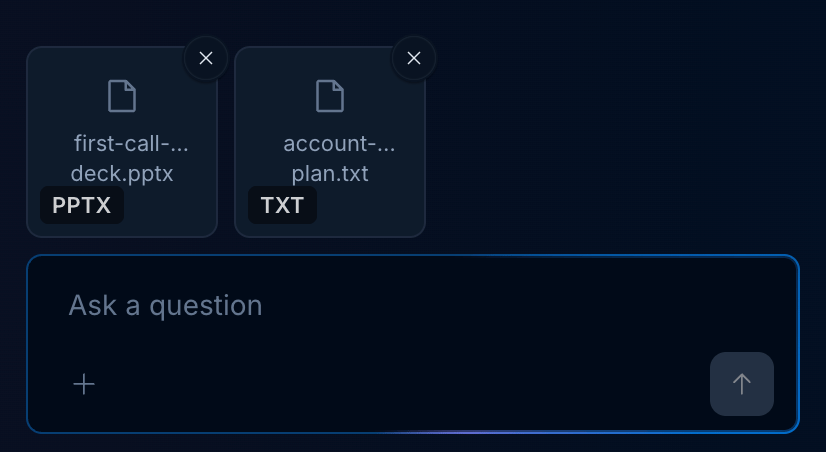
#### Adding files to a chat
You can attach files to any chat by clicking the **+** button in the chat input. Once added, files appear above the input. To remove a file before submitting, click the **X**.
* **Favorite:** Click the star icon next to the thread title to favorite a chat. Favorited chats are pinned to the top of the chat list so you can get back to the threads you return to most.
* **Copy chat link:** Click the link icon in the top right to copy a link to the chat. Share it with anyone in your organization to give them the full thread, including your questions and Endgame's responses and citations. Links only work for people in your organization who are logged in to Endgame.
* **More options:** Click the **...** menu next to the thread title to delete the chat. Deleting removes the thread from your chat history and can't be undone.
#### Shared chats
When someone in your organization sends you a link to one of their chats, the thread appears under **Shared** in the chat column once you open it, with the name of the person who shared it below the title. From then on you can reopen it from the column instead of hunting down the original link.
#### Adding files to a chat
You can attach files to any chat by clicking the **+** button in the chat input. Once added, files appear above the input. To remove a file before submitting, click the **X**.
 *Supported file types: PDF, Word (.doc, .docx), Excel (.xls, .xlsx), CSV, TSV,
JSON, XML, HTML, Markdown, plain text (.txt, .log), and images (.png, .jpg,
.gif, .webp). The maximum file size is 5 MB per file.*
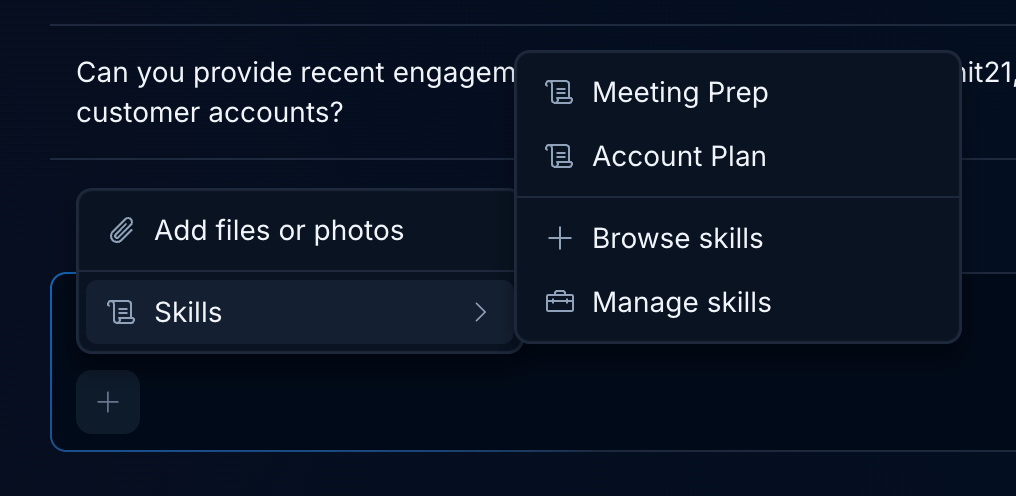
#### Access skills in chat
Your organization skills are accessible in chat. Click on **+** to open the menu and select or browse skills to use in your chat. You can also type `/` to view available skills.
*Supported file types: PDF, Word (.doc, .docx), Excel (.xls, .xlsx), CSV, TSV,
JSON, XML, HTML, Markdown, plain text (.txt, .log), and images (.png, .jpg,
.gif, .webp). The maximum file size is 5 MB per file.*
#### Access skills in chat
Your organization skills are accessible in chat. Click on **+** to open the menu and select or browse skills to use in your chat. You can also type `/` to view available skills.
 #### Include entity context in chat
Use the **Ask a question** button in the top right of any entity page to go straight to chat with that page's context already added. The context appears as a tag in the chat input. To remove it, click the **X** on the tag.
#### Include entity context in chat
Use the **Ask a question** button in the top right of any entity page to go straight to chat with that page's context already added. The context appears as a tag in the chat input. To remove it, click the **X** on the tag.
 ***
## Quick navigation tips
### Link to accounts in Endgame
You can link directly to a specific account in Endgame using the account's Salesforce ID. Some organizations find this particularly helpful for linking from Salesforce records into Endgame.
Use the following URL format, replacing `[SALESFORCE ACCOUNT ID]` with the account's Salesforce ID:
`https://app.endgame.io/accounts/[SALESFORCE ACCOUNT ID]`
Example: `https://app.endgame.io/accounts/0011234567890ABC`
## Need help or have feedback?
We'd love to hear from you! You can reach us at [support@endgame.io](mailto:support@endgame.io).
This documentation is built and hosted on [Mintlify](https://mintlify.com), a developer documentation platform.
***
## Quick navigation tips
### Link to accounts in Endgame
You can link directly to a specific account in Endgame using the account's Salesforce ID. Some organizations find this particularly helpful for linking from Salesforce records into Endgame.
Use the following URL format, replacing `[SALESFORCE ACCOUNT ID]` with the account's Salesforce ID:
`https://app.endgame.io/accounts/[SALESFORCE ACCOUNT ID]`
Example: `https://app.endgame.io/accounts/0011234567890ABC`
## Need help or have feedback?
We'd love to hear from you! You can reach us at [support@endgame.io](mailto:support@endgame.io).
This documentation is built and hosted on [Mintlify](https://mintlify.com), a developer documentation platform.