> ## Documentation Index
> Fetch the complete documentation index at: https://docs.endgame.io/llms.txt
> Use this file to discover all available pages before exploring further.
# MCP Server
> Connect Endgame to AI assistants using the Model Context Protocol
The Endgame MCP (Model Context Protocol) Server gives AI assistants like Claude or ChatGPT direct access to your organization's revenue intelligence -- CRM records, meeting transcripts, emails, Slack conversations, uploaded documents, and more. Once connected, your assistant can search interaction history, look up accounts, find stakeholders, query your data warehouse, and surface insights without leaving the conversation.
Think of it as giving your AI assistant a direct line to everything Endgame knows about your business.
## Getting Started
We recommend connecting Endgame through the **Endgame connector in Claude's connector directory**, **ChatGPT on the web or desktop**, or directly in a **Claude Code** or **Codex** terminal session. All options give your AI assistant direct access to all Endgame tools.
Want to call Endgame tools directly from your terminal or scripts, without an
AI assistant? See the [Endgame CLI](/features/cli).
### Connect via Claude
Endgame is available as a connector in Claude's connector directory. This is the recommended way to connect Endgame for Claude users, and gives Claude direct access to all Endgame tools.
An admin needs to enable Endgame for the organization before anyone on the team can use it.
1. In Claude, go to **Settings** → **Connectors**
2. Search the connector directory for **Endgame**
3. Enable the connector for your organization
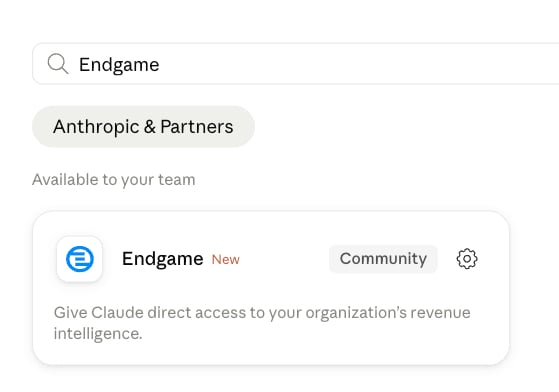
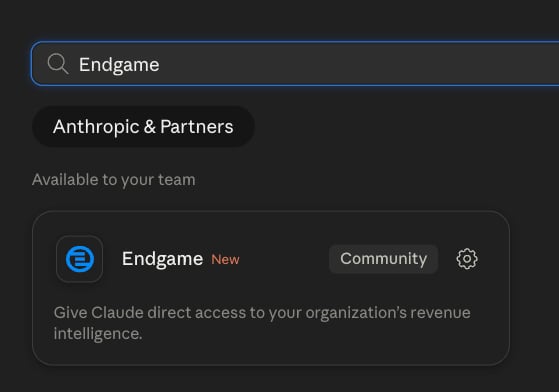 Once the admin has enabled the connector at the organization level, each team member can connect:
1. Go to **Settings** → **Connectors** in Claude
2. Find the Endgame connector and click **Connect**
3. Follow the authentication prompts to sign in with your Endgame account
Once connected, just ask Claude anything about your accounts, pipeline, meetings, or conversations. Claude will automatically use the right Endgame tools to find your answer.
Endgame periodically updates our MCP tools. You can ensure you have the latest
tool set by going into your Endgame connector, opening the overflow menu, and
clicking Refresh Tools List.
### Connect via ChatGPT
Connect Endgame using the instructions for ChatGPT on the web or the desktop app. Sign in with your Endgame account when prompted.
Endgame is available as a public plugin in the ChatGPT plugin directory.
By default, only ChatGPT workspace admins can install Endgame for everyone in the workspace.
In ChatGPT, click your workspace name in the bottom left to open the user menu, then select **Workspace settings**.
Once the admin has enabled the connector at the organization level, each team member can connect:
1. Go to **Settings** → **Connectors** in Claude
2. Find the Endgame connector and click **Connect**
3. Follow the authentication prompts to sign in with your Endgame account
Once connected, just ask Claude anything about your accounts, pipeline, meetings, or conversations. Claude will automatically use the right Endgame tools to find your answer.
Endgame periodically updates our MCP tools. You can ensure you have the latest
tool set by going into your Endgame connector, opening the overflow menu, and
clicking Refresh Tools List.
### Connect via ChatGPT
Connect Endgame using the instructions for ChatGPT on the web or the desktop app. Sign in with your Endgame account when prompted.
Endgame is available as a public plugin in the ChatGPT plugin directory.
By default, only ChatGPT workspace admins can install Endgame for everyone in the workspace.
In ChatGPT, click your workspace name in the bottom left to open the user menu, then select **Workspace settings**.
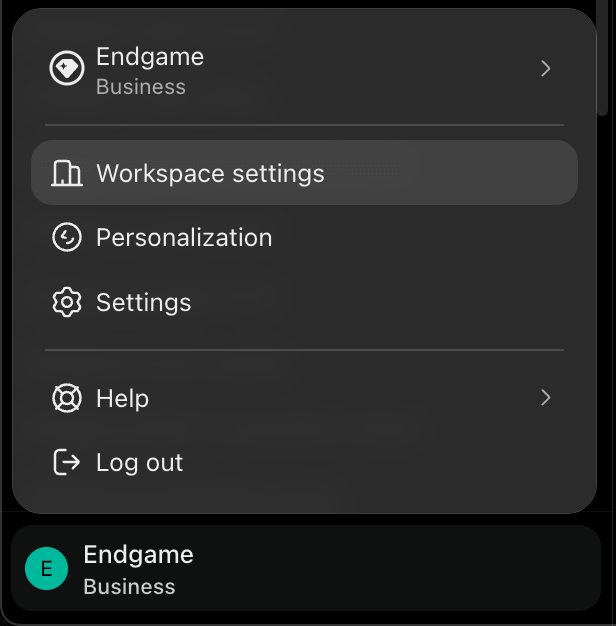 Open **Plugins**, search for **Endgame**, and select it from the **Public** tab.
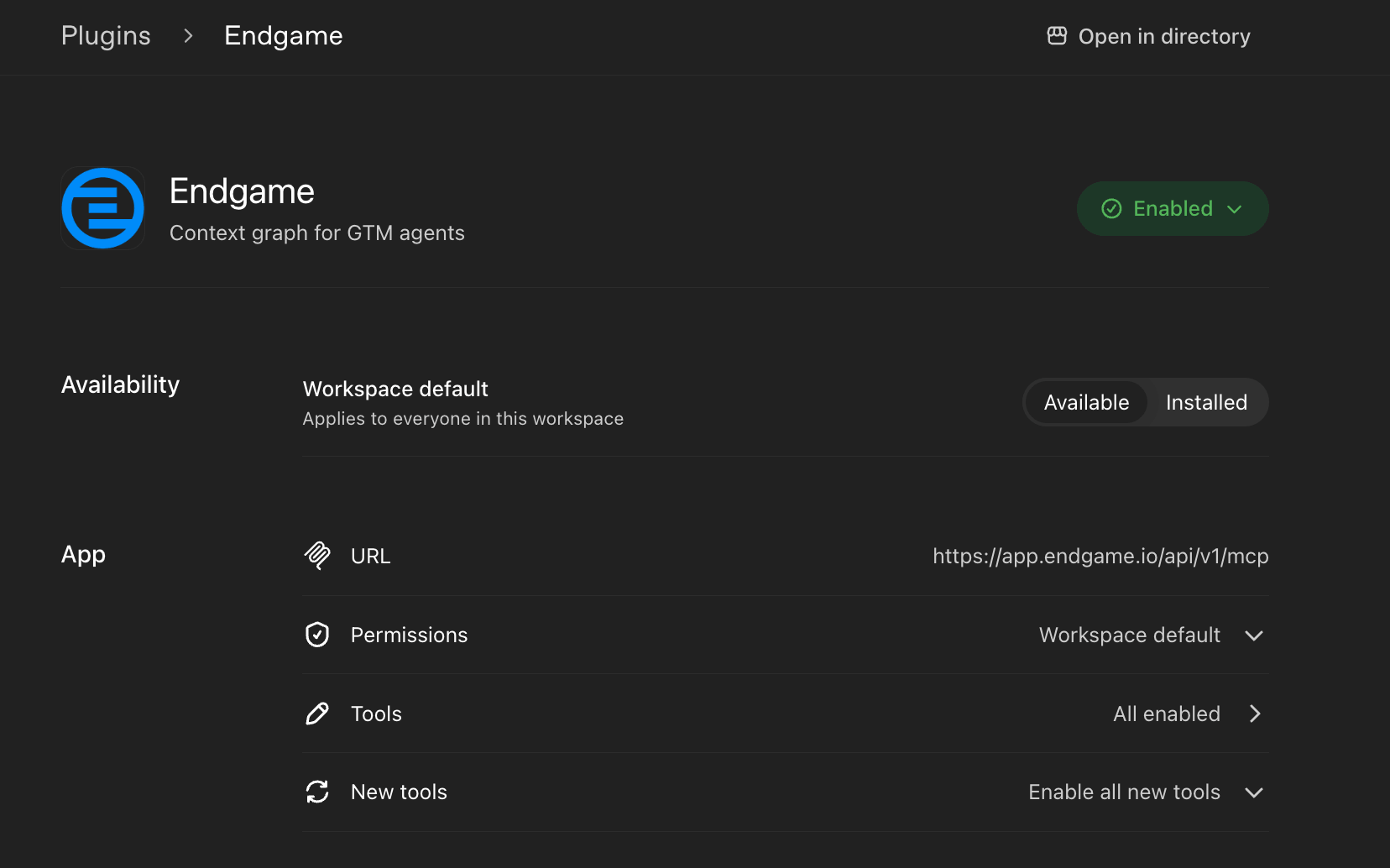
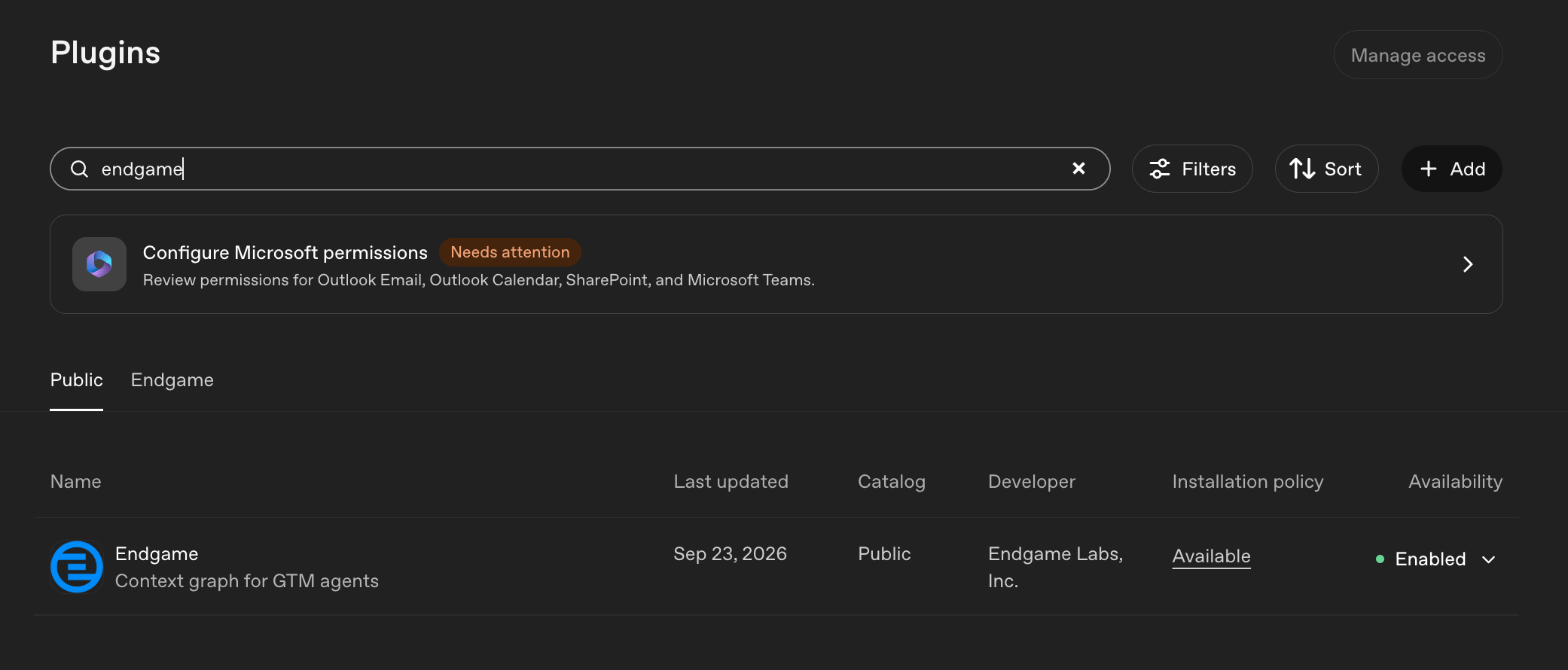 The Endgame plugin page controls how Endgame is made available across your workspace.
* **Enabled / Disabled:** Only admins can enable or disable Endgame for the workspace. Endgame is **Enabled** by default as a public plugin in the ChatGPT Plugin Directory.
* **Workspace default:** Choose **Available** to let each user install Endgame themselves from Plugins, or **Installed** to install Endgame for everyone in the workspace. We recommend installing Endgame for everyone on your team by default.
* **Tools** and **New tools:** Review which Endgame tools are enabled and whether new tools are turned on automatically as Endgame adds them. We recommend the default, to **Enable all new tools**.
The Endgame plugin page controls how Endgame is made available across your workspace.
* **Enabled / Disabled:** Only admins can enable or disable Endgame for the workspace. Endgame is **Enabled** by default as a public plugin in the ChatGPT Plugin Directory.
* **Workspace default:** Choose **Available** to let each user install Endgame themselves from Plugins, or **Installed** to install Endgame for everyone in the workspace. We recommend installing Endgame for everyone on your team by default.
* **Tools** and **New tools:** Review which Endgame tools are enabled and whether new tools are turned on automatically as Endgame adds them. We recommend the default, to **Enable all new tools**.
 If your admin set Endgame to **Available**, open [Plugins](https://chatgpt.com/plugins), search for **Endgame**, and install it. If your admin set it to **Installed**, Endgame is already in your workspace.
The first time you use Endgame, follow the prompts to sign in with your Endgame account.
Start a new conversation and try asking: "Use Endgame to summarize recent meetings for my accounts."
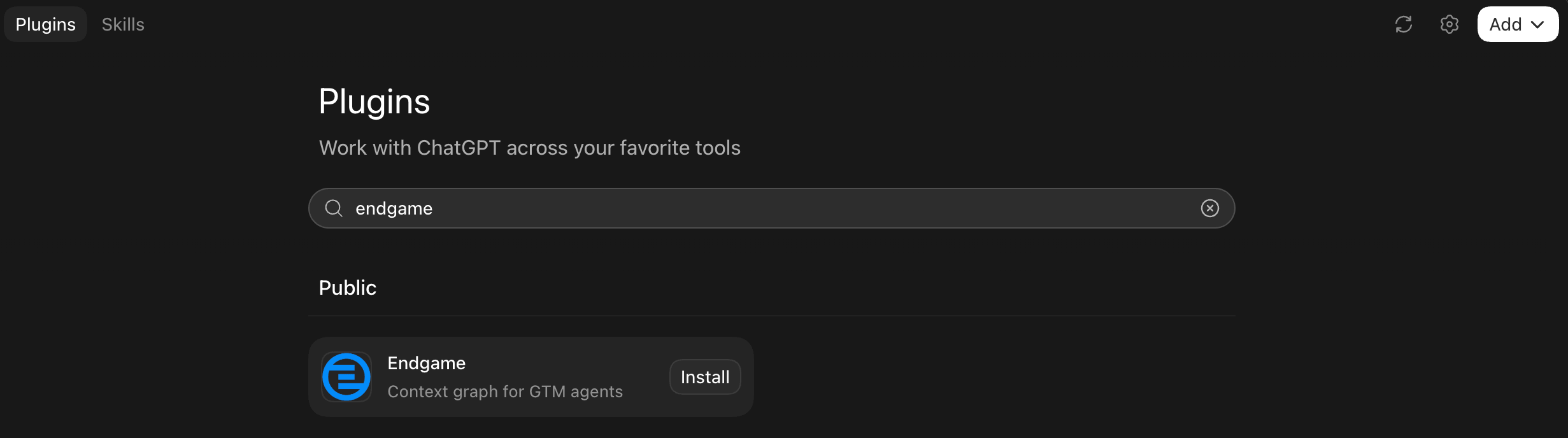
1. Select **Plugins** in the side nav.
2. Search for **Endgame**.
3. Click **Install**.
If your admin set Endgame to **Available**, open [Plugins](https://chatgpt.com/plugins), search for **Endgame**, and install it. If your admin set it to **Installed**, Endgame is already in your workspace.
The first time you use Endgame, follow the prompts to sign in with your Endgame account.
Start a new conversation and try asking: "Use Endgame to summarize recent meetings for my accounts."
1. Select **Plugins** in the side nav.
2. Search for **Endgame**.
3. Click **Install**.
 Follow the prompts to sign in with your Endgame account.
Start a new conversation and try asking: "Use Endgame to summarize recent meetings for my accounts."
If you can't find Endgame in Plugins, ask your ChatGPT workspace admin to
enable it for your workspace.
### Connect via Claude Code
Use the Claude Code CLI to add Endgame as a remote MCP server. This is a good option if you work in the terminal and want Endgame tools available in your Claude Code sessions.
In your terminal, run:
```bash theme={null}
claude mcp add --transport http endgame https://app.endgame.io/api/v1/mcp
```
This uses the default `local` scope, which ties the server to the current project directory. If you want Endgame available across all your projects, use `--scope user` instead:
```bash theme={null}
claude mcp add --transport http endgame --scope user https://app.endgame.io/api/v1/mcp
```
To share the config with your team, use `--scope project`. This writes the server to a `.mcp.json` file in your project root — commit that file to git and anyone who clones the repo will have it configured automatically:
```bash theme={null}
claude mcp add --transport http endgame --scope project https://app.endgame.io/api/v1/mcp
```
Start a Claude Code session and verify the server is connected:
```bash theme={null}
claude
```
In the session, run `/mcp`. This shows live connection status and confirms Endgame tools are loading. Select the Endgame server and follow the browser prompts to sign in with your Endgame account.
You'll be prompted to authenticate the first time you connect. Claude Code will open a browser window to complete the OAuth flow with Endgame.
Once connected, ask Claude anything about your accounts, pipeline, meetings, or conversations. Claude will automatically use the right Endgame tools to find your answer.
### Connect via Codex
Use the Codex CLI to add Endgame as a remote MCP server. This is a good option if you work in Codex terminal sessions and want Endgame tools available there.
In your terminal, run:
```bash theme={null}
codex mcp add endgame --url https://app.endgame.io/api/v1/mcp
```
Codex detects OAuth support and may start the login flow automatically. If it does not, authenticate separately:
```bash theme={null}
codex mcp login endgame
```
Running this command will open a browser window prompting you to sign in with your Endgame account. Complete the login there and Codex will store your credentials automatically.
Verify the server was added:
```bash theme={null}
codex mcp list
```
Launch Codex in the directory where you want to work:
```bash theme={null}
codex
```
Endgame tools are available once the MCP server is connected and authenticated.
Once connected, ask Codex anything about your accounts, pipeline, meetings, or conversations. Codex will automatically use the right Endgame tools to find your answer.
### Connect via Claude Managed Agents (Service Accounts)
Use a service account API key to connect Endgame to Claude Managed Agents (CMA). Service accounts are user-agnostic and scoped to your organization, making them the right choice for automated or shared agent workflows.
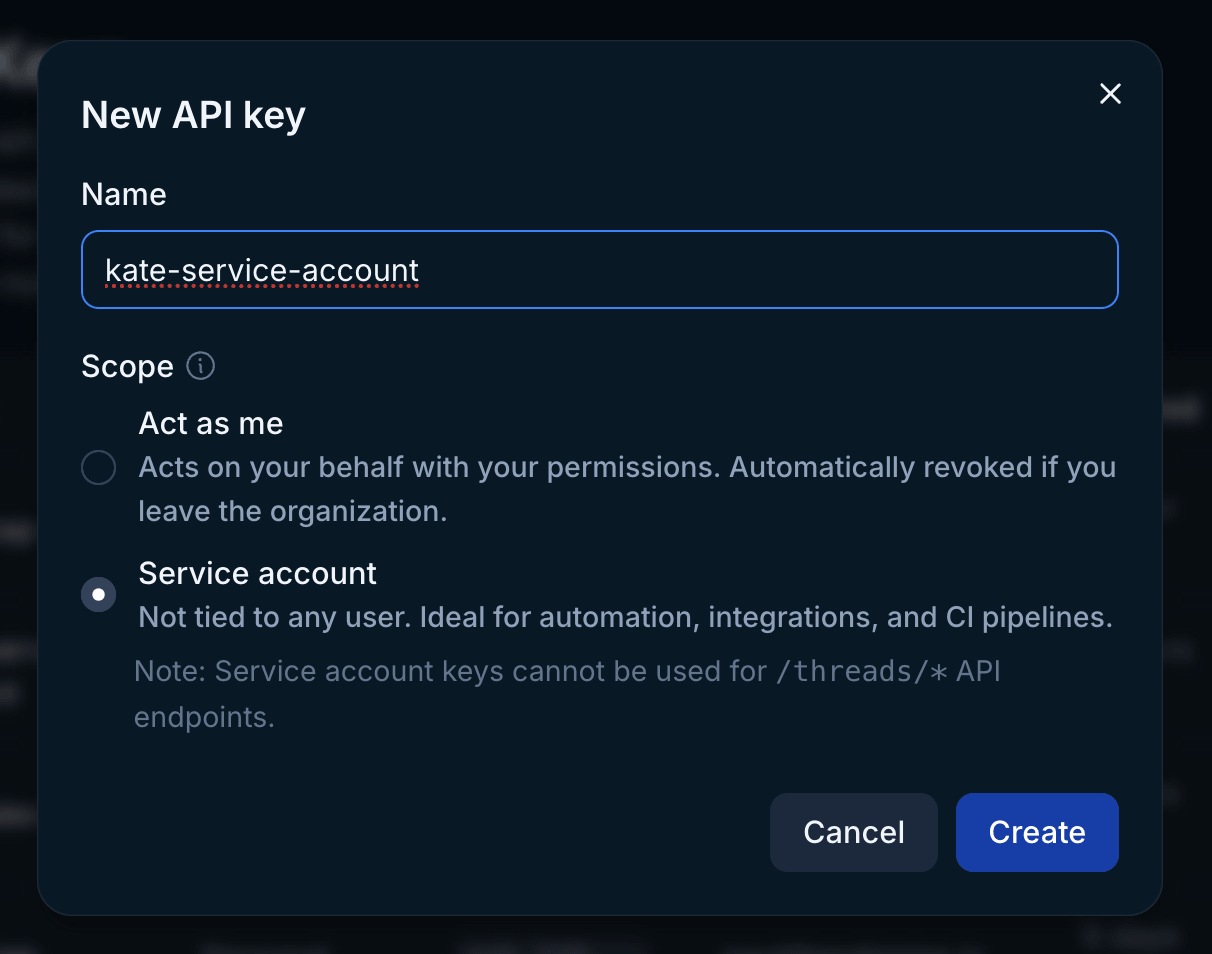
1. Go to [https://app.endgame.io/settings/api-keys](https://app.endgame.io/settings/api-keys)
2. Click **New API Key**
3. Name your key and select the **Service Account** option
4. Click **Create** and copy the key immediately — you won't be able to view it again
Only Endgame Admins can create api keys. The number of service keys you are allowed to create for your organization may be limited.
Follow the prompts to sign in with your Endgame account.
Start a new conversation and try asking: "Use Endgame to summarize recent meetings for my accounts."
If you can't find Endgame in Plugins, ask your ChatGPT workspace admin to
enable it for your workspace.
### Connect via Claude Code
Use the Claude Code CLI to add Endgame as a remote MCP server. This is a good option if you work in the terminal and want Endgame tools available in your Claude Code sessions.
In your terminal, run:
```bash theme={null}
claude mcp add --transport http endgame https://app.endgame.io/api/v1/mcp
```
This uses the default `local` scope, which ties the server to the current project directory. If you want Endgame available across all your projects, use `--scope user` instead:
```bash theme={null}
claude mcp add --transport http endgame --scope user https://app.endgame.io/api/v1/mcp
```
To share the config with your team, use `--scope project`. This writes the server to a `.mcp.json` file in your project root — commit that file to git and anyone who clones the repo will have it configured automatically:
```bash theme={null}
claude mcp add --transport http endgame --scope project https://app.endgame.io/api/v1/mcp
```
Start a Claude Code session and verify the server is connected:
```bash theme={null}
claude
```
In the session, run `/mcp`. This shows live connection status and confirms Endgame tools are loading. Select the Endgame server and follow the browser prompts to sign in with your Endgame account.
You'll be prompted to authenticate the first time you connect. Claude Code will open a browser window to complete the OAuth flow with Endgame.
Once connected, ask Claude anything about your accounts, pipeline, meetings, or conversations. Claude will automatically use the right Endgame tools to find your answer.
### Connect via Codex
Use the Codex CLI to add Endgame as a remote MCP server. This is a good option if you work in Codex terminal sessions and want Endgame tools available there.
In your terminal, run:
```bash theme={null}
codex mcp add endgame --url https://app.endgame.io/api/v1/mcp
```
Codex detects OAuth support and may start the login flow automatically. If it does not, authenticate separately:
```bash theme={null}
codex mcp login endgame
```
Running this command will open a browser window prompting you to sign in with your Endgame account. Complete the login there and Codex will store your credentials automatically.
Verify the server was added:
```bash theme={null}
codex mcp list
```
Launch Codex in the directory where you want to work:
```bash theme={null}
codex
```
Endgame tools are available once the MCP server is connected and authenticated.
Once connected, ask Codex anything about your accounts, pipeline, meetings, or conversations. Codex will automatically use the right Endgame tools to find your answer.
### Connect via Claude Managed Agents (Service Accounts)
Use a service account API key to connect Endgame to Claude Managed Agents (CMA). Service accounts are user-agnostic and scoped to your organization, making them the right choice for automated or shared agent workflows.
1. Go to [https://app.endgame.io/settings/api-keys](https://app.endgame.io/settings/api-keys)
2. Click **New API Key**
3. Name your key and select the **Service Account** option
4. Click **Create** and copy the key immediately — you won't be able to view it again
Only Endgame Admins can create api keys. The number of service keys you are allowed to create for your organization may be limited.
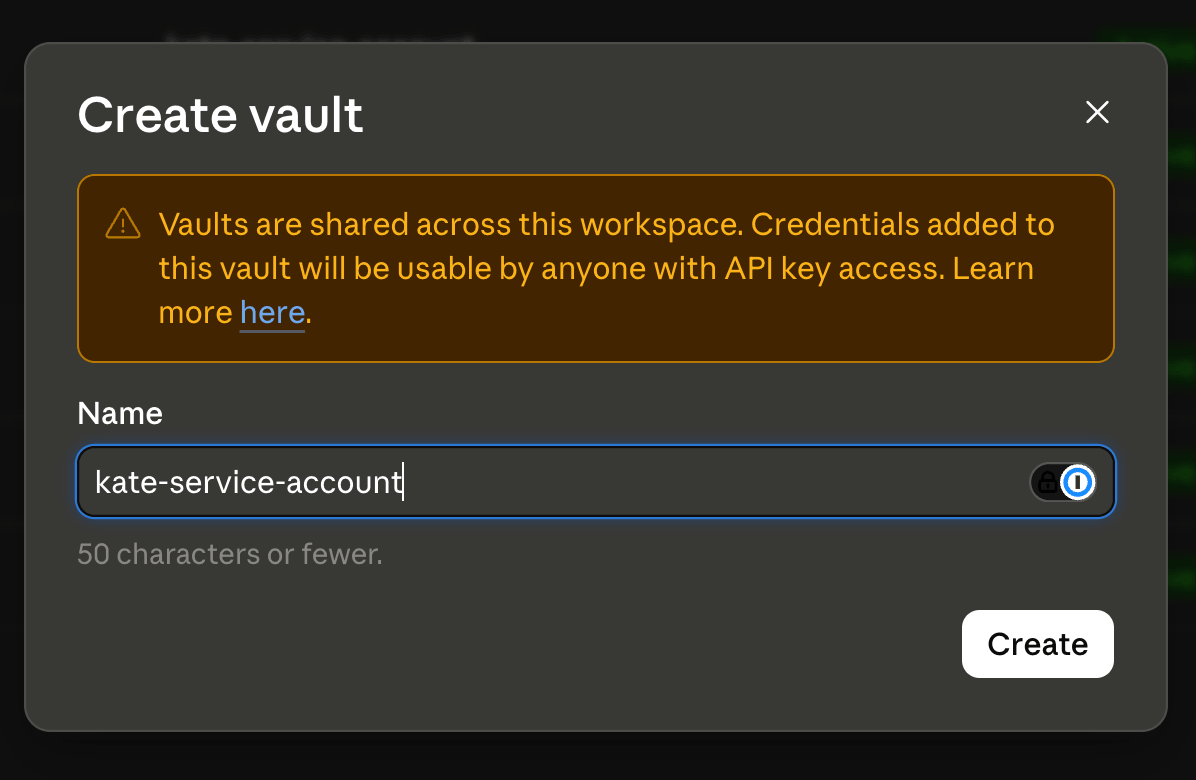
 1. In Claude Managed Agents, go to **Credential Vaults** in the side navigation
2. Click **+ New Vault**
1. In Claude Managed Agents, go to **Credential Vaults** in the side navigation
2. Click **+ New Vault**
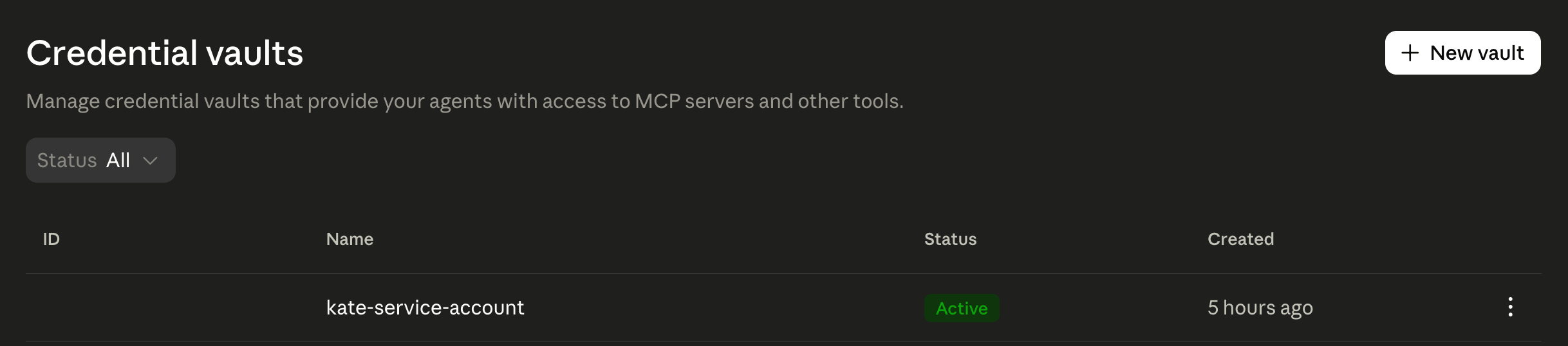 3. Enter a name for your vault and click **Create**
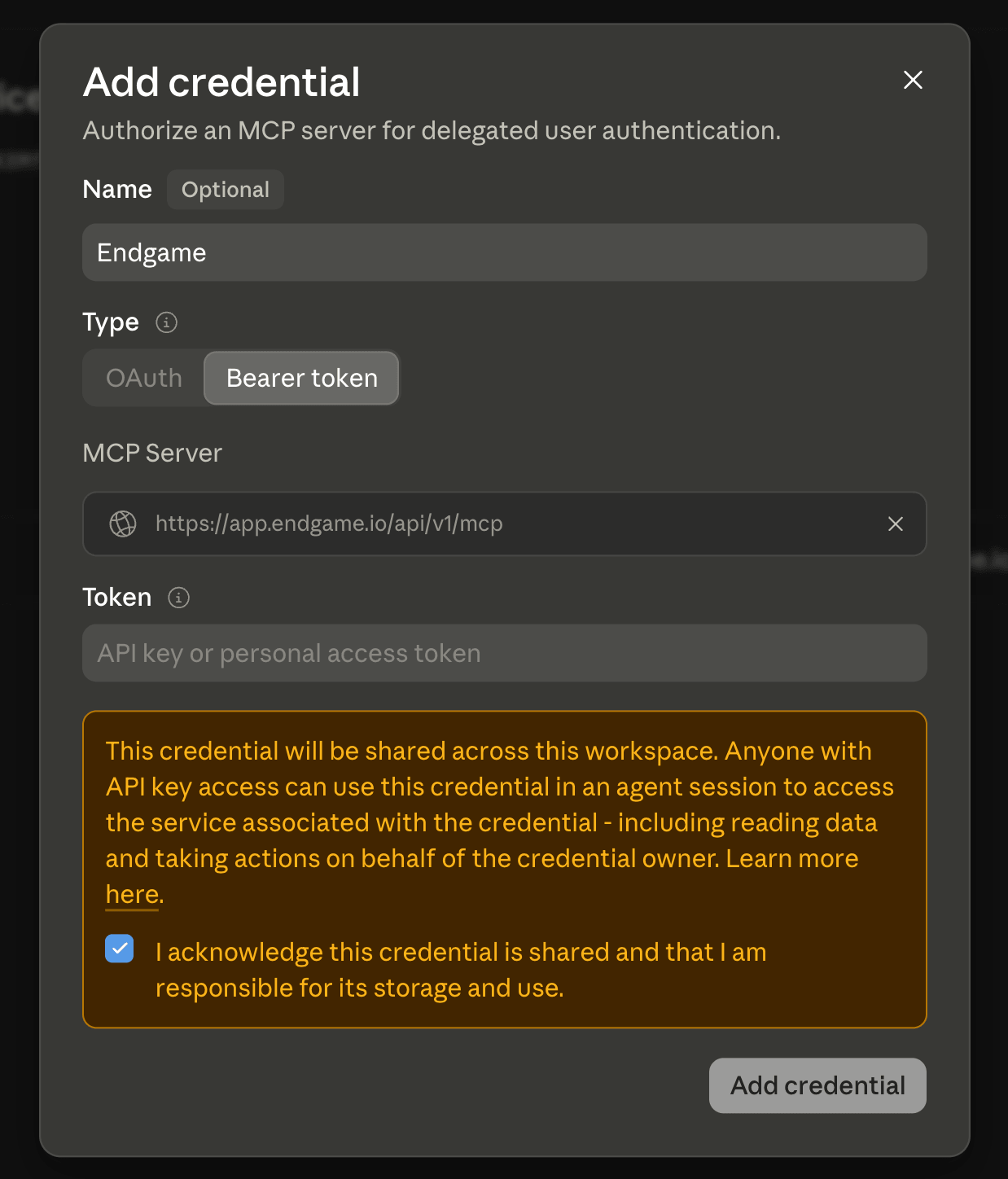
 1. Inside your new vault, click **Add Credential**
2. Select **Bearer Token** as the credential type
3. Paste the API key you created in Endgame
4. Set the custom connector URL to: `https://app.endgame.io/api/v1/mcp`
5. Save the credential
1. Inside your new vault, click **Add Credential**
2. Select **Bearer Token** as the credential type
3. Paste the API key you created in Endgame
4. Set the custom connector URL to: `https://app.endgame.io/api/v1/mcp`
5. Save the credential
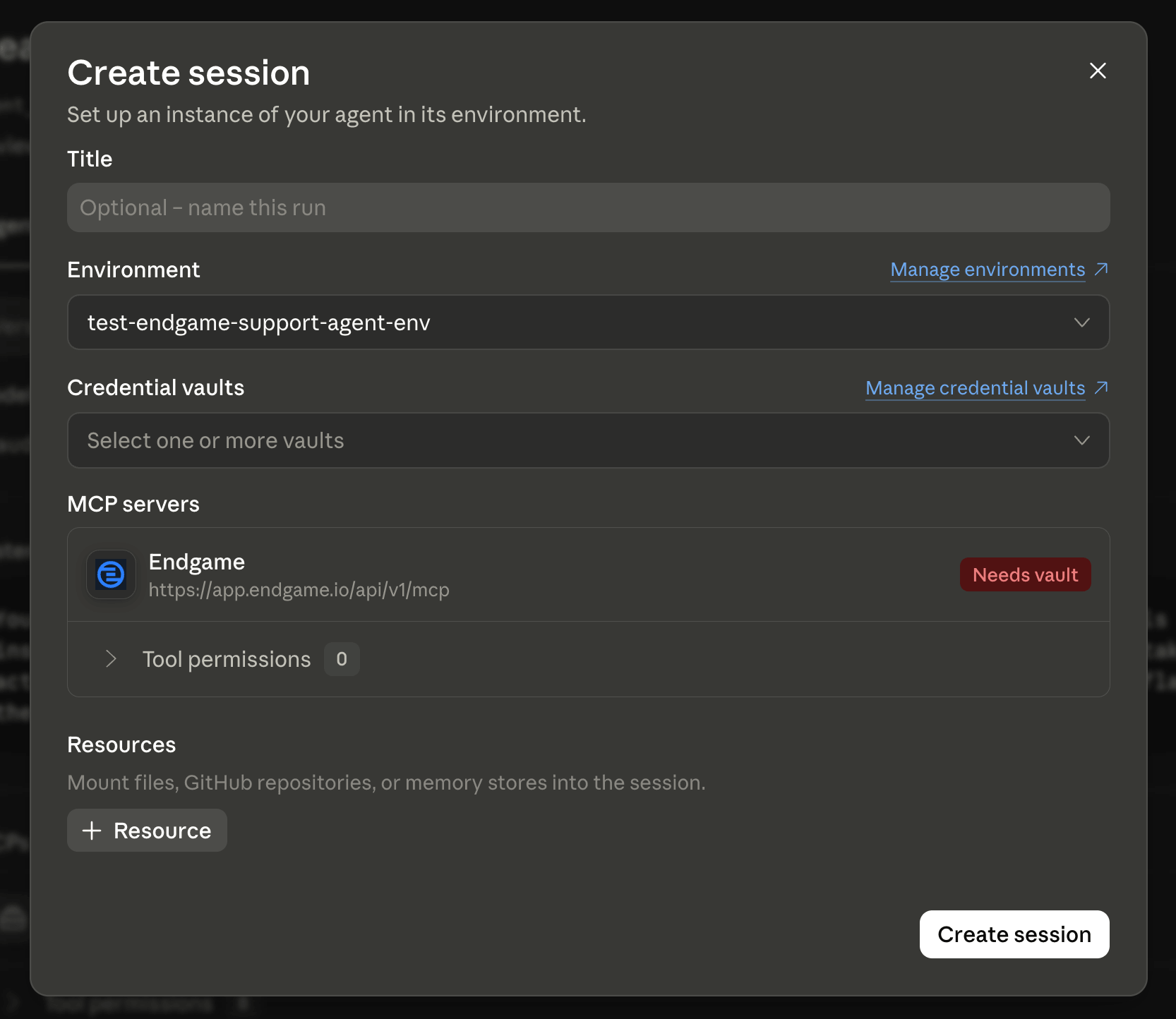
 When starting a session with an agent that requires the Endgame MCP, you will be prompted to provide credentials. Select the vault you created to authenticate the session.
 For information on setting and accessing vault credentials programmatically,
refer to the [Claude Managed Agents vaults
documentation](https://platform.claude.com/docs/en/managed-agents/vaults).
## How to Use It
Once connected, simply ask your AI assistant questions about your business. You don't need to use any special syntax -- your assistant will automatically select the right Endgame tools based on your question.
For complex analyses, your assistant can chain multiple tools together -- for example, finding an account, pulling its recent interactions, and searching the evidence behind them to build a complete picture.
"What accounts does my team own, and when was the last time we interacted with each one?"
"What did customers bring up as pain points or risks across our last 20 sales
calls?"
"What did Salesforce's CFO say about their AI strategy on the most recent
earnings call?"
"Show me all open opportunities over \$500K that haven't had any activity in
the last 45 days."
"What are we saying internally on Slack about the upcoming renewal with Acme
Corp?"
"Who are the key executives at this account, and can anyone on our team make an introduction?"
## Available Tools
When connected, the following tools are available. Your AI assistant selects the right tool automatically based on your question.
### Graph Discovery & Search
| Tool | Description |
| - | - |
| `get_graph_index` | Get an overview of your organization's context graph -- what entity types exist (accounts, people, meetings, opportunities, and more), how many of each, and what properties they carry. |
| `get_graph_field_catalog` | Get your organization's field catalog -- stable field IDs, property keys, value types, and filterability for building precise graph filters. |
| `search_graph_entities` | Search the context graph by display name, graph ID, or source identifier. The entry point for resolving a mentioned company, meeting, deal, or document to a graph entity. |
| `list_graph_entities` | Browse entities of a single type with property filters and ordering -- for example, "list open opportunities" or "accounts of type Customer". |
| `get_graph_entities` | Load the full record for one or more entities by ID, including properties, relationships, summaries, recent news, and LinkedIn detail where available. |
| `get_graph_relationships` | Fetch the relationships of a single entity -- meetings on an account, participants in a meeting, opportunities at a company -- with filtering and pagination. |
| `list_graph_relationships` | List or aggregate relationships org-wide, such as counting meetings per account or contacts per company. |
### People
| Tool | Description |
| - | - |
| `find_graph_person` | Resolve a person mentioned by name, email, or CRM ID to their graph record. |
| `get_graph_person` | Load full detail for one or more people -- LinkedIn career history, per-account role assessments (champion, decision maker, etc.), and interaction narratives. |
| `search_graph_people` | Search people by their relationship to accounts and companies -- an account's contact roster, its key stakeholders, or org-wide sweeps like "VPs across all Enterprise accounts". |
### Facts & Evidence
| Tool | Description |
| - | - |
| `get_graph_facts` | List the facts known about a specific entity -- extracted statements with supporting quotes and sources, ranked by salience and recency. |
| `search_graph_facts` | Semantic search across extracted facts from meetings, emails, and documents -- for thematic evidence questions like pain points, risks, or competitor mentions. |
| `get_graph_citations` | Open the sources behind a single piece of context-agent output -- a work stream, news item, or stakeholder summary -- to see the quotes and documents that back each claim. |
| `verified_sources` | Display a verified-source footer alongside an answer, showing which accounts, meetings, emails, and documents informed it and how many of each. |
### Your Accounts & Profile
| Tool | Description |
| - | - |
| `get_my_graph_profile` | Resolve the current user to their graph profile -- your team, manager, and the accounts and opportunities you own. |
| `list_my_accounts` | List the accounts you own or are assigned to, with the ownership source for each. |
### Skills
| Tool | Description |
| - | - |
| `list_skills` | Discover the expert workflows your organization has authored -- deal inspection playbooks, meeting prep templates, research skills, and more. |
| `read_skill` | Load the full instructions for a specific skill. |
| `download_skill_assets` | Download a skill's supporting files (scripts, templates, examples) in a single call. |
### Digests
| Tool | Description |
| - | - |
| `list_digests` | List your scheduled digests, including any that are paused. |
| `get_digest` | Load a single digest in full -- its schedule, prompt, email settings, and when it last ran. |
| `create_digest` | Set up a new recurring digest on a daily, weekdays, weekly, monthly, or quarterly schedule, with optional email delivery. |
| `update_digest` | Change an existing digest's name, schedule, prompt, recipients, or active state -- including pausing and resuming it. |
| `delete_digest` | Delete a digest so it stops running. |
### Organization Rules & Feedback
| Tool | Description |
| - | - |
| `get_org_rules` | Load your organization's writing, style, policy, and product guidance so answers stay consistent with your standards. |
| `tell_endgame` | Correct or add to the context graph, and send feedback to the Endgame team. Use it when something in Endgame is wrong, outdated, or missing -- a company's industry, someone's employer, a stakeholder on a deal, an entity Endgame doesn't know yet -- or to file a bug or feature request. |
## Rate Limits
Rate limits are configured per organization and may vary depending on your plan. If you encounter rate limit errors, contact your Endgame administrator to review your organization's current limits.
## Important Notes
* **Response time**: Complex queries -- especially org-wide searches and aggregations across the context graph -- can take up to a few minutes to complete.
* **Data access**: Results are scoped to the data your organization has connected to Endgame (CRM, transcripts, Slack, etc.).
## Troubleshooting
**Claude doesn't seem to have access to Endgame tools?**
* In Claude, go to **Settings** → **Extensions** (under Desktop App) and confirm the Endgame connector is toggled on
* Check that tool permissions are set to **Always Allow** for all Endgame tools
**Getting authentication errors?**
* Your session may have expired -- try reconnecting the connector
**Hitting rate limits?**
* You've exceeded your organization's request limit
* Limits reset daily. Contact your administrator if you need an adjustment
## Need Help?
For issues or questions about the Endgame MCP Server, contact your Endgame administrator or reach out to [support@endgame.io](mailto:support@endgame.io).
This documentation is built and hosted on [Mintlify](https://mintlify.com), a developer documentation platform.
For information on setting and accessing vault credentials programmatically,
refer to the [Claude Managed Agents vaults
documentation](https://platform.claude.com/docs/en/managed-agents/vaults).
## How to Use It
Once connected, simply ask your AI assistant questions about your business. You don't need to use any special syntax -- your assistant will automatically select the right Endgame tools based on your question.
For complex analyses, your assistant can chain multiple tools together -- for example, finding an account, pulling its recent interactions, and searching the evidence behind them to build a complete picture.
"What accounts does my team own, and when was the last time we interacted with each one?"
"What did customers bring up as pain points or risks across our last 20 sales
calls?"
"What did Salesforce's CFO say about their AI strategy on the most recent
earnings call?"
"Show me all open opportunities over \$500K that haven't had any activity in
the last 45 days."
"What are we saying internally on Slack about the upcoming renewal with Acme
Corp?"
"Who are the key executives at this account, and can anyone on our team make an introduction?"
## Available Tools
When connected, the following tools are available. Your AI assistant selects the right tool automatically based on your question.
### Graph Discovery & Search
| Tool | Description |
| - | - |
| `get_graph_index` | Get an overview of your organization's context graph -- what entity types exist (accounts, people, meetings, opportunities, and more), how many of each, and what properties they carry. |
| `get_graph_field_catalog` | Get your organization's field catalog -- stable field IDs, property keys, value types, and filterability for building precise graph filters. |
| `search_graph_entities` | Search the context graph by display name, graph ID, or source identifier. The entry point for resolving a mentioned company, meeting, deal, or document to a graph entity. |
| `list_graph_entities` | Browse entities of a single type with property filters and ordering -- for example, "list open opportunities" or "accounts of type Customer". |
| `get_graph_entities` | Load the full record for one or more entities by ID, including properties, relationships, summaries, recent news, and LinkedIn detail where available. |
| `get_graph_relationships` | Fetch the relationships of a single entity -- meetings on an account, participants in a meeting, opportunities at a company -- with filtering and pagination. |
| `list_graph_relationships` | List or aggregate relationships org-wide, such as counting meetings per account or contacts per company. |
### People
| Tool | Description |
| - | - |
| `find_graph_person` | Resolve a person mentioned by name, email, or CRM ID to their graph record. |
| `get_graph_person` | Load full detail for one or more people -- LinkedIn career history, per-account role assessments (champion, decision maker, etc.), and interaction narratives. |
| `search_graph_people` | Search people by their relationship to accounts and companies -- an account's contact roster, its key stakeholders, or org-wide sweeps like "VPs across all Enterprise accounts". |
### Facts & Evidence
| Tool | Description |
| - | - |
| `get_graph_facts` | List the facts known about a specific entity -- extracted statements with supporting quotes and sources, ranked by salience and recency. |
| `search_graph_facts` | Semantic search across extracted facts from meetings, emails, and documents -- for thematic evidence questions like pain points, risks, or competitor mentions. |
| `get_graph_citations` | Open the sources behind a single piece of context-agent output -- a work stream, news item, or stakeholder summary -- to see the quotes and documents that back each claim. |
| `verified_sources` | Display a verified-source footer alongside an answer, showing which accounts, meetings, emails, and documents informed it and how many of each. |
### Your Accounts & Profile
| Tool | Description |
| - | - |
| `get_my_graph_profile` | Resolve the current user to their graph profile -- your team, manager, and the accounts and opportunities you own. |
| `list_my_accounts` | List the accounts you own or are assigned to, with the ownership source for each. |
### Skills
| Tool | Description |
| - | - |
| `list_skills` | Discover the expert workflows your organization has authored -- deal inspection playbooks, meeting prep templates, research skills, and more. |
| `read_skill` | Load the full instructions for a specific skill. |
| `download_skill_assets` | Download a skill's supporting files (scripts, templates, examples) in a single call. |
### Digests
| Tool | Description |
| - | - |
| `list_digests` | List your scheduled digests, including any that are paused. |
| `get_digest` | Load a single digest in full -- its schedule, prompt, email settings, and when it last ran. |
| `create_digest` | Set up a new recurring digest on a daily, weekdays, weekly, monthly, or quarterly schedule, with optional email delivery. |
| `update_digest` | Change an existing digest's name, schedule, prompt, recipients, or active state -- including pausing and resuming it. |
| `delete_digest` | Delete a digest so it stops running. |
### Organization Rules & Feedback
| Tool | Description |
| - | - |
| `get_org_rules` | Load your organization's writing, style, policy, and product guidance so answers stay consistent with your standards. |
| `tell_endgame` | Correct or add to the context graph, and send feedback to the Endgame team. Use it when something in Endgame is wrong, outdated, or missing -- a company's industry, someone's employer, a stakeholder on a deal, an entity Endgame doesn't know yet -- or to file a bug or feature request. |
## Rate Limits
Rate limits are configured per organization and may vary depending on your plan. If you encounter rate limit errors, contact your Endgame administrator to review your organization's current limits.
## Important Notes
* **Response time**: Complex queries -- especially org-wide searches and aggregations across the context graph -- can take up to a few minutes to complete.
* **Data access**: Results are scoped to the data your organization has connected to Endgame (CRM, transcripts, Slack, etc.).
## Troubleshooting
**Claude doesn't seem to have access to Endgame tools?**
* In Claude, go to **Settings** → **Extensions** (under Desktop App) and confirm the Endgame connector is toggled on
* Check that tool permissions are set to **Always Allow** for all Endgame tools
**Getting authentication errors?**
* Your session may have expired -- try reconnecting the connector
**Hitting rate limits?**
* You've exceeded your organization's request limit
* Limits reset daily. Contact your administrator if you need an adjustment
## Need Help?
For issues or questions about the Endgame MCP Server, contact your Endgame administrator or reach out to [support@endgame.io](mailto:support@endgame.io).
This documentation is built and hosted on [Mintlify](https://mintlify.com), a developer documentation platform.